— Help center
Availability & schedules
Availability decides which slots invitees can actually book. It works alongside your connected calendar.
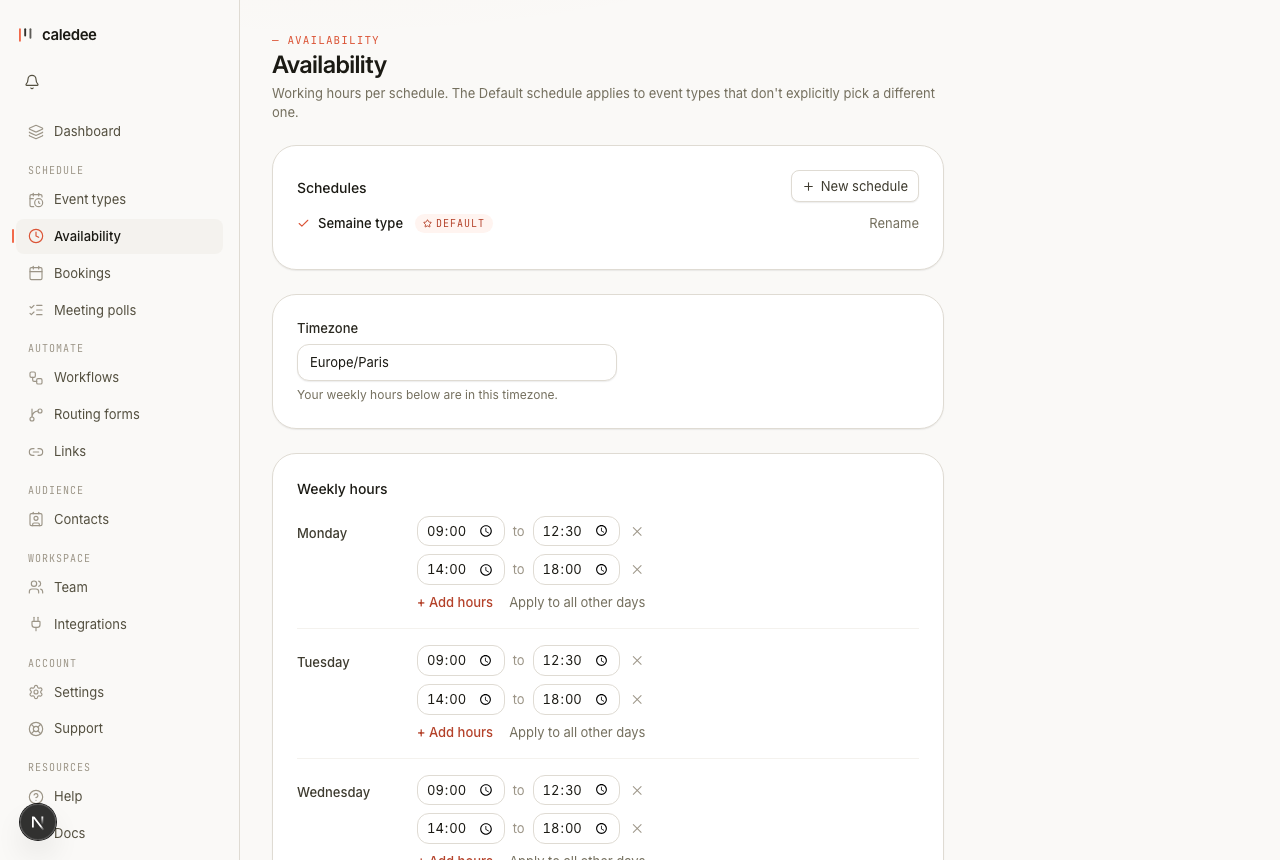
Weekly hours
On the Availability page you set your working hours for each day of the week. Turn a day off entirely, or give it several time ranges (for example mornings and late afternoons). All times are wall-clock in your timezone — Caledee converts them for each invitee automatically.
Timezone
Your schedule is anchored to an IANA timezone. When daylight saving changes, your real availability shifts with it — a 9:00 start stays 9:00 local. Invitees always see slots in their own timezone, which they can change on the booking page.
Date overrides
Need different hours on a specific day? Add a date override — extend your hours for one busy week, or block a day off for a holiday. Overrides win over the weekly pattern for that date.
Buffers, notice, and limits
Some controls live on the event type rather than the schedule, because they depend on the meeting:
- Buffer time before and after a meeting.
- Minimum notice before a slot can be booked.
- A daily booking cap and a rolling window of how far ahead people can book.
Named schedules
Save a set of hours as a named schedule — for example “Working hours” and “Evenings” — and attach the right one to each event type. Edit the schedule once and every event type that uses it updates together.