— Help center
Managed workflows (team templates)
On the Team plan, an organization admin can write a reminder or follow-up workflow once and push it to everyone on the team. Each member receives a locked copy that re-syncs every time you edit the original.
Who can use this
Managed workflows are part of the Team plan, and only an organization owner or admin can create and assign them. If you only need automation for your own bookings, the personal Workflows feature covers that on Free and Pro.
1. Create a template
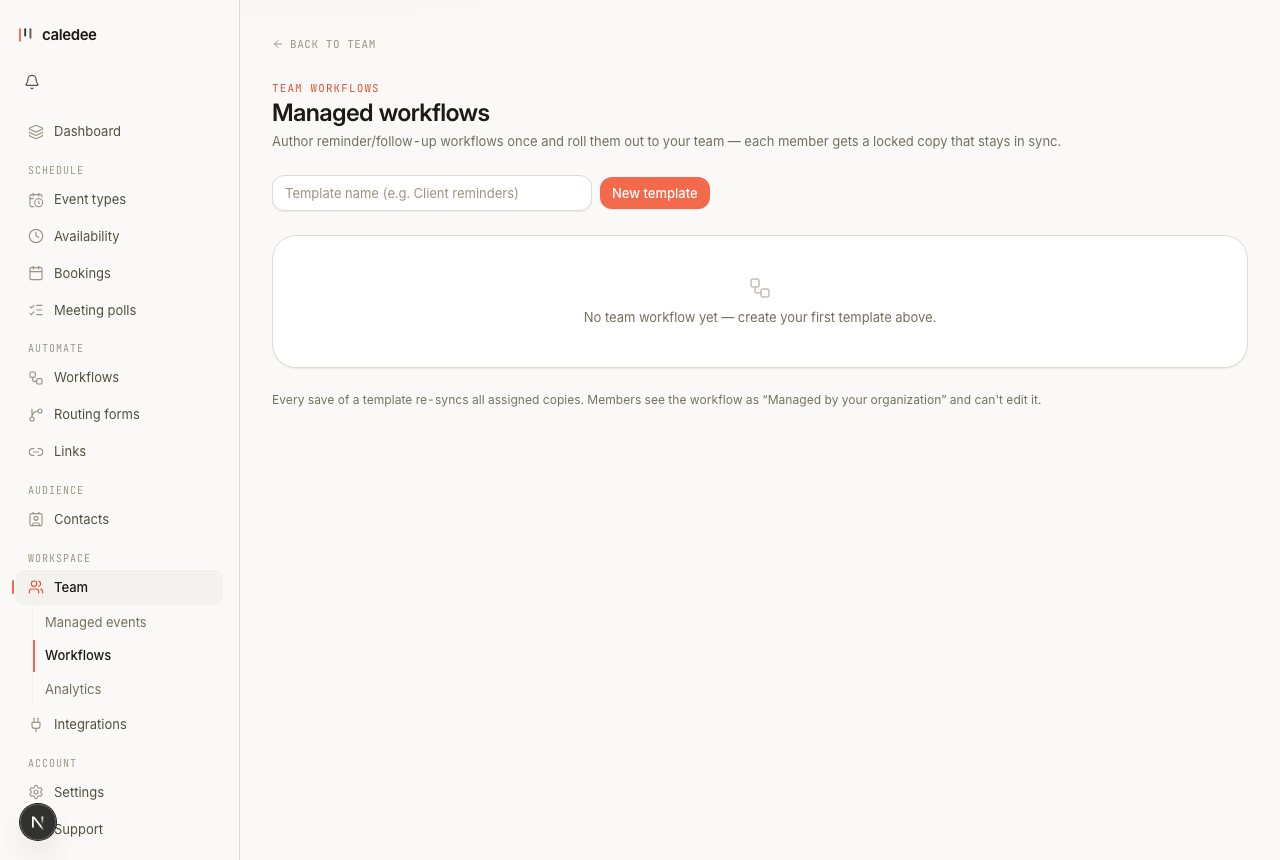
From your organization page, open Team workflows (/org/workflows). Give the template a name your team will recognise — for example Client reminders — and create it. Every new template starts with one step: an invitee reminder 24 hours before the meeting, so it's useful right away.
2. Edit the steps
Click Edit steps to open the template in the normal workflow editor. Add or change steps just like a personal workflow — triggers (before start, after end, on cancel, on no-show), email actions, and offsets. See Workflows: reminders & follow-ups for what each option does.
3. Assign members
Under each template you'll see a row per teammate with an Assign toggle. Turning it on clones the template into that member's account. What members get:
- The copy applies to all of their event types — there's no per-event-type targeting on managed copies (that's a per-member personal-workflow feature).
- The copy is locked: members see it labelled “Managed by your organization” and can't edit, pause, or delete it.
- Their own personal workflows keep working alongside it — assigning a managed workflow doesn't remove anything they already set up.
Edits stay in sync
Every time you save the template, Caledee re-syncs all assigned copies — the name, the active/paused state, and the full step list are replaced to match the original. You edit in one place; the whole team updates.
Removing a workflow
Turn the toggle off to unassign a member — their copy is deleted. Pausing the template (its active toggle) cascades to every copy on the next save, so you can switch the whole team's reminders off without removing anyone. If your organization is deleted, the template survives as your personal workflow.