— Help center
Routing forms
A routing form qualifies a visitor with a few questions, then sends them to exactly the right place to book.
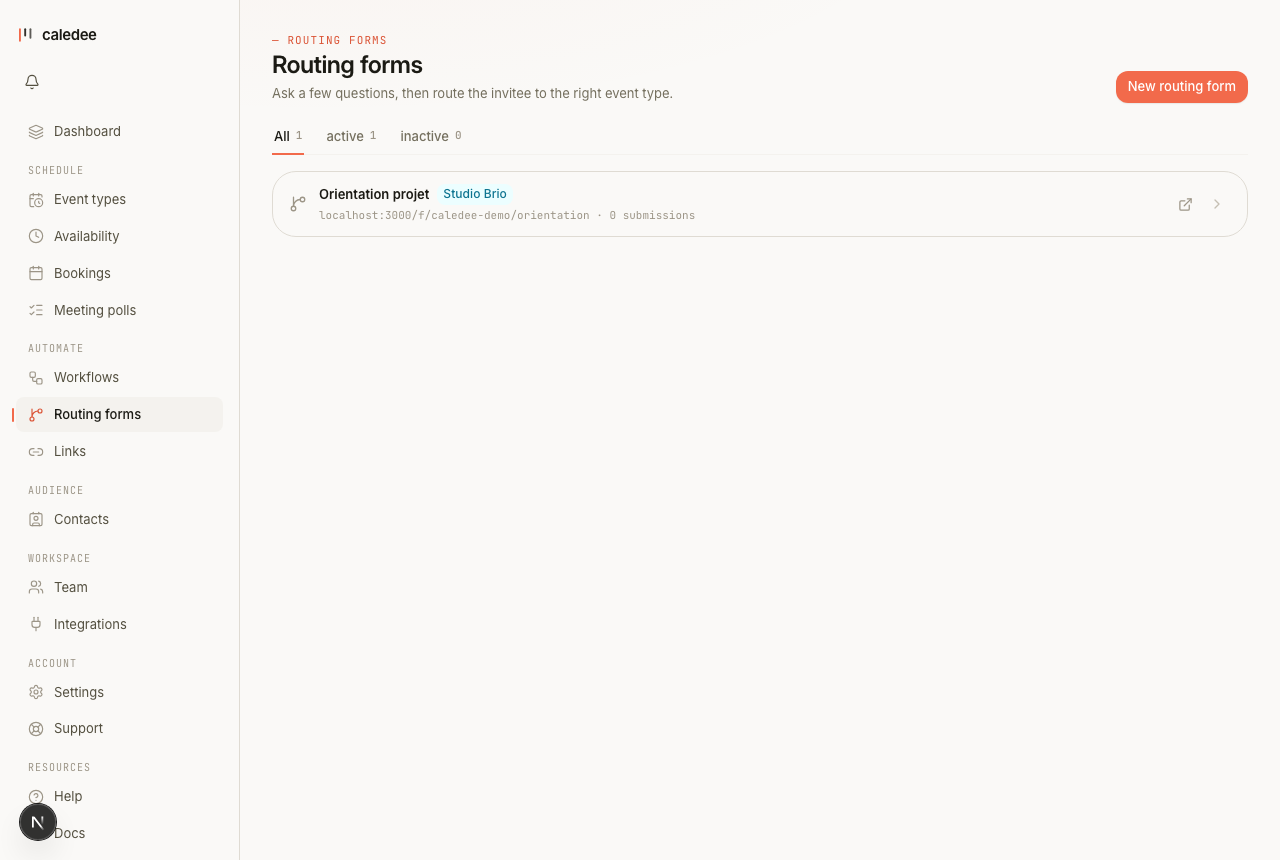
What a routing form does
Instead of a single booking link, you publish a short form. Based on the answers, the visitor is routed to the right event type, an external URL, or a custom message. It's how you make sure an enterprise lead reaches sales and a support question reaches support.
Building one
- On the Routing forms page, create a form and add fields — short text, choices, a phone number, and so on.
- Add rules: when an answer matches a condition, route to a chosen event type or URL.
- Set a default destination for anyone who doesn't match a rule.
- Publish it and share the form's public link.
Sharing across your organization
On a Team account you can promote a routing form to org-shared, so teammates can use and manage it rather than each person maintaining their own copy. Only an org owner or admin can flip a form to org-shared.
What you can route to
- Any of your event types.
- An external URL (your pricing page, a different scheduler, a docs link).
- A plain message — useful for “we don't serve your region yet” cases.
Routing forms are a Pro feature; org sharing requires a Team plan. See Billing & plans.
Every option, explained
The complete reference — each option, what it does, and a concrete example. (The same table lives in the downloadable PDF guide on the help home page.)
| Option | What it does | Example |
|---|---|---|
| Fields | Text, paragraph, email, phone, number, single/multi select. | “Project type” (select) |
| Required | Blocks submission client AND server side. | email required |
| Rules | If answer X → event type Y, external URL, or message. | Product → /audit |
| Fallback | Message or URL when no rule matches. | “We'll get back within 24 h” |
| Org sharing (Team) | Visible to all members; admins edit, members view. | Studio Brio |