— Help center
Managing bookings
Once meetings start landing on your calendar, here is how to handle changes, no-shows, and cancellations.
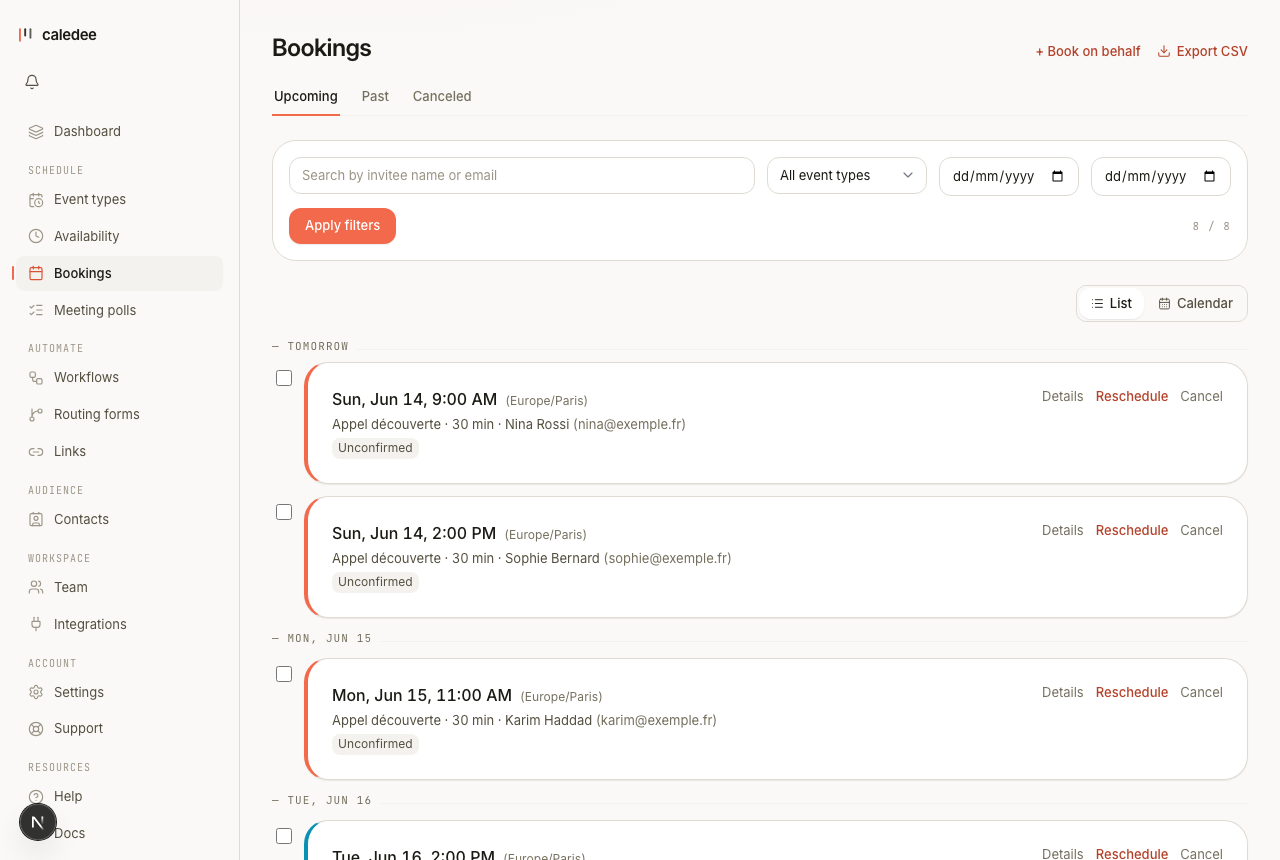
Where your bookings live
The Bookings page lists every upcoming and past meeting. Switch between list and calendar views, filter by status, and open any booking to see the invitee's answers and your private host notes.
Reschedule
Either side can move a meeting. Invitees use the Reschedule link in their confirmation and reminder emails to pick a new slot from your live availability — no back-and-forth needed. As the host, open the booking to change the time yourself; the invitee is notified automatically.
Cancel
Open a booking and choose Cancel. The slot frees up immediately and a cancellation email goes to the invitee. Invitees can also cancel from their own confirmation email. For a recurring booking, you can cancel a single occurrence or the whole series.
Delete it from your calendar
Caledee keeps your calendar in sync both ways. If you delete a booking's event from your connected calendar, Caledee notices and cancels the booking automatically — the invitee gets a cancellation email, the reminders stop, and the slot frees up. The same happens if the invitee declines the calendar invite.
No-shows
When someone doesn't turn up, open the booking and mark it as a no-show. It stays on record (useful for your contacts history) and can trigger a no-show follow-up workflow if you have one set up.
Reminders and follow-ups
Caledee sends confirmation and reminder emails out of the box. With Workflows you can add your own: extra reminders, thank-you notes, no-show follow-ups, and host notifications.
Things to know
- Canceling or rescheduling always releases the original slot for others.
- Past bookings stay searchable so you keep a full history per contact.
- You can export your bookings data from your account at any time.